MainLobby
Designer allows great
flexibilty and power over
what your MainLobby scenes
look like, navigate like
and what they can control.
Graphical elements can be
easily selected from the
included MainLobby library,
or from the optional Cinemar
libraries. Users can also
add their own graphics using
user created jpg image files.
Newly supported in MainLobby
Designer, is the ability
for end users to create
their own Flash buttons
that can have different
graphical states for when
the button is Down, Up,
and when the mouse pointer
is "hovering"
over the button. Up until
now, this required the user
to have Macromedia Flash
software, and the experience
to use this feature rich
design software.
Now available is a free tool*
that makes creation of Flash
buttons (swf file) super easy
and doesn't require Macromedia
Flash at all.
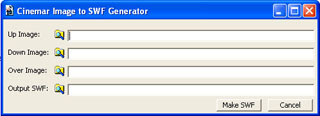
Cinemar SWF Generator
To use the SWF Generator,
download the SwfGen.zip
file to a directory and
unzip it. Just launch the
SwfGen.exe file and the
above window should open.
In the Up Image field, click
the browse button and locate
the Up button image you
would like to use. There
are samples in the Buttons
directory. Do same for Down
and Over Image. Then, select
a path and file name for
the Output SWF file. Click
the Make SWF button, and
you're done creating an
swf that can be used in
MainLobby!
Normally, you could copy
the new swf to the Cinemar\SWF
directory. In MainLobby
Design Menu, click the Image
button and select the new
swf file you created. You
should now have your custom
swf button in your MainLobby
scene.
*The Cinemar SWF Generator
is free for use by MainLobby
customers. It is licensed
for creation of buttons
only to be used in MainLobby.
** Requires
MainLobby 3.00.51 or
higher to display files
created with the SWF Generator
Tool.