| |
 |
| |
Installation
Wizard |
| |
|
 |
You
should have already installed
MainLobby
and J
River Media Center on your
system |
|
Make
sure the J River product is
not running |
|
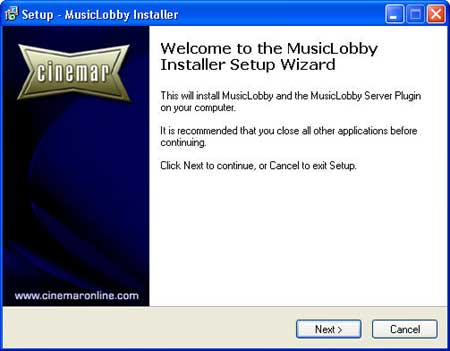
Execute
setup_musiclobby.exe |
| |
|
| |
|
| |
|
|
Press
Next. |
| |
|
| |
|
| |
|
| |
|
|
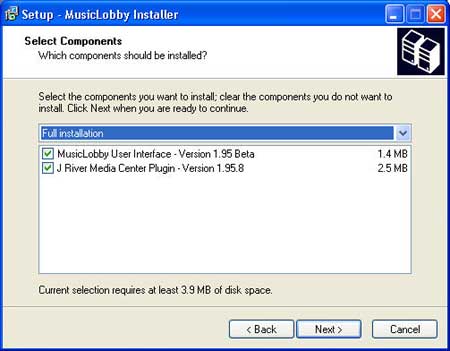
Select
Next for a complete install
of the User Interface for MainLobby
(Scenes, Musiclobby.swf and
background images) and the Plugin
for J River Media Center |
| |
|
|
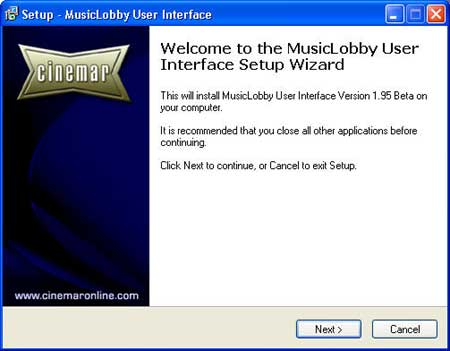
Subsequently,
the MusicLobby User Interface
Setup screen will Open. |
| |
|
| |
|
| |
|
|
Press
Next to begin installation of
the User Interface for MainLobby |
| |
|
| |
|
| |
|
| |
|
|
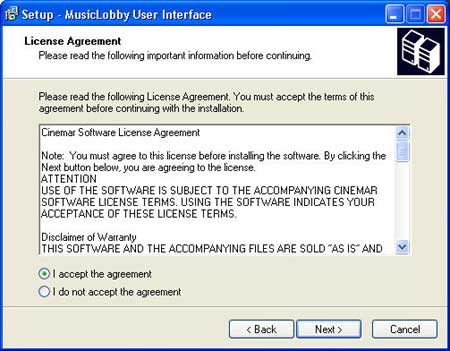
Read
the Cinemar Software License
Agreement and select the radio
button labeled: I accept the
agreement, then press Next. |
| |
|
| |
|
| |
|
| |
|
|
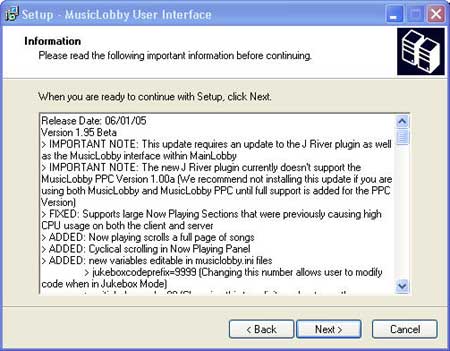
Take
a moment to review the Release
Notes and updates...then press
Next. |
| |
|
| |
|
| |
|
| |
|
|
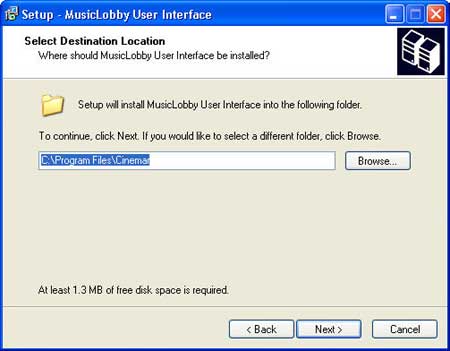
The
default install of MainLobby
creates a Cinemar folder in
your Program Files directory.
This is also where MusicLobby
should be installed. |
|
Press
Next to install all Scenes,
Images and MusicLobby.swf |
| |
|
|
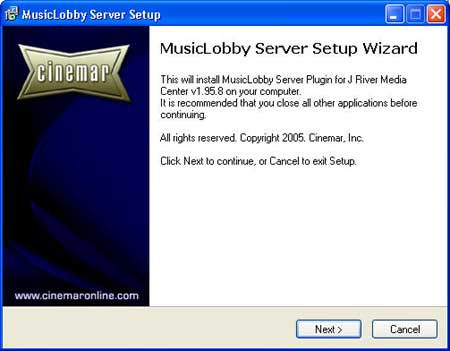
Subsequently,
the MusicLobby Server Plugin
Setup screen will for J River
Media Center will Open. |
| |
|
| |
|
| |
|
|
Press
Next to continue with the MusicLobby
Server plugin. This plugin should
be installed on the same computer
J River Media Center is running.
If it is running on another
computer, press Cancel and begin
the installation process on
the appropriate computer. |
| |
|
| |
|
| |
|
| |
|
|
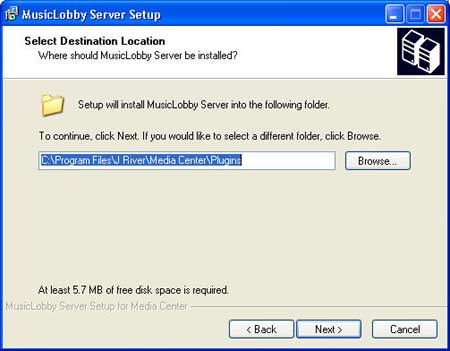
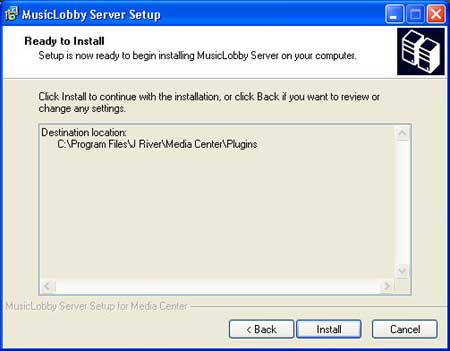
Only experienced users should
modify the default installation
path. The MusicLobby Server
Plugin for J River Media Center
will be installed to:
C:\Program Files\J River\Media
Center\Plugins
|
|
Press
Next to continue with the installation
of the Plugin |
| |
|
| |
|
| |
|
| |
|
|
Press
Install |
| |
|
| |
|
| |
|
| |
|
|
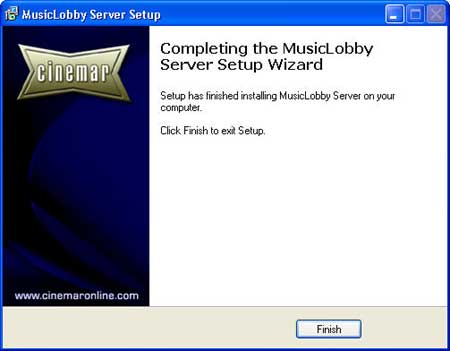
Complete
your installation by selecting
Finish. |
| |
|
| |
|
| |
Configuring
the MusicLobby Server Plugin
within J River Media Center |
| |
|
|
Launch
J River Media Center |
| |
|
| |
|
| |
|
|
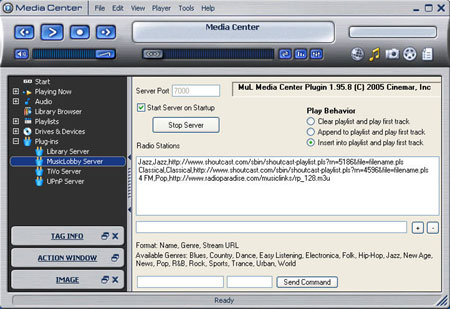
In
the left pane window, you'll
see a Plug-ins folder,
press the + sign to the
left and select MusicLobby Server.
|
|
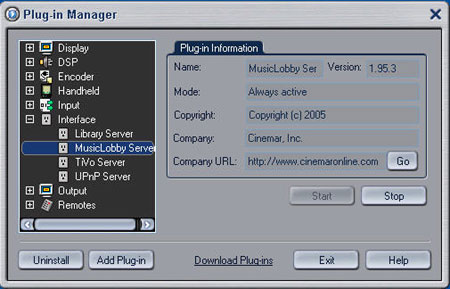
If
you do not see MusicLobby
Server listed under Plug-ins,
select Tools from the
J River Media Center Main Menu
and then Plug-in Manager. |
| |
|
| |
|
| |
|
|
Select
the + symbol next to Interface
and then MusicLobby Server. |
|
Then
press Start and Exit. MusicLobby
Server should now appear in
your Plug-ins folder. |
|
The
default Server Port is configured
to 7000 and should not be changed
unless you are an advanced user.
You can press the checkbox labeled
Start Server on Startup
if you'd like MusicLobby to
autoconnect to Media Center
on every startup. |
|
Press
Start Server to initiate
the MusicLobby Server Plugin.
The MusicLobby Server Plug-in
is now ready to communicate
with the MusicLobby Interface
within MainLobby. |
| |
|
| |
|
| |
|
| |
Getting
Started |
| |
|
|
Start
MainLobby (Assumes MediaCenter
is already open) |
|
Move
your mouse to the top of the
screen to reveal the MainLobby
menu bar |
|
Select
Open |
|
Browse
to the file musiclobby.mls (If
you would like this to be your
default startup scene when loading
MainLobby, you may select OPTIONS
| DISPLAY and locate musiclobby.mls
as your default startup scene) |
|
Press
OK |
|
MusicLobby
should automatically connect
to Media Jukebo/Center |
| |
|
| |
|
| |
Configuring
the MusicLobby User Interface
within MainLobby |
| |
|
| |
If
you are running MusicLobby on
the same computer as Media Center
- you won't need to change your
server domain name.
If you are connected to a network
and Media Jukebox/Center is
running on another computer,
you'll need to specify the Server
Domain name by selecting OPTIONS
from MusicLobby and then SETUP.
In the upper left panel, change
the Domain to match your server
computer name. You may also
use an IP Address instead of
the computers name. Closing
this panel automatically saves
your settings to musiclobby.ini.
The current default settings
for MusicLobby are:
Server Domain Name: localhost
Port: 7000 |
| |
|
| |
To
find out what your server computer
name is: |
|
From
Windows go to your start menu. |
|
Select
Control Panel. |
|
Then
double-click on System icon. |
|
Select
the Computer Name tab. |
| |
The
field "Full computer name"
provides the name of your computer.
You don't need to include the
period after the name. Again,
you'll only need to modify the
file musiclobby.ini if your
port is configured differently
than 8080 in Media Jukebox/Center
or if you are running MainLobby
on computer that is not running
Media Jukebox/Center locally. |
| |
|
| |
|
| |
Troubleshooting |
| |
|
| |
How
do I know which version of MusicLobby
I'm running? |
| |
The
version number is located in
the MusicLobby OPTIONS
> SETUP Panel. |
| |
|
| |
How
do I know if I'm connected to
the Server? |
| |
From
MusicLobby, press OPTIONS >
SETUP. At the top of the Setup
Panel you'll notice a green
or red light. Red Light means
you are not connected, green
means you have successfully
connected to the server computer. |
| |
|
| |
Nothing
is displaying in MusicLobby |
|
Double
check to make sure there is
a musiclobby.ini file in the
same folder as musiclobby.swf |
|
Check
to see if you are connected
in the Configuration panel (Green
means you are connected, red
means you are not connected) |
|
If
you are running MediaCenter
and MusicLobby on the same computer,
verify the ports are identical
in MediaCenter and MusicLobby.
If all else fails, you may try
changing the port to another
number such as 7005 in both
places. |
|
If
you are trying to connect from
a remote computer, the musiclobby.ini
file on the client machine will
need to be configured with the
server domain name of the server
computer. |
| |
|
| |
MusicLobby
doesn't fill my screen |
| |
Adjust
your display settings to your
appropriate monitor resolution
in MainLobby's Display panel,
press OK and then press SAVE
from MainLobby's menu bar. Then
restart MainLobby for your new
settings to take effect. |
| |
|
| |
How
do I return to the previous
screen from the Valet screen? |
| |
Valet
was designed for entertaining
guests and prevents unauthorized
access by hiding the the Options
menu button. You can return
to the previous screen by pressing/clicking
in the lower left corner of
your screen. |
| |
|
| |
Cover
Art isn't displaying within
MusicLobby |
|
Verify
image shows up in MJ/MC |
|
Make
sure you have a socket connection
and that MJ/MC is loaded before
MusicLobby (You should see some
text above/below cover are display
area) |
|
Verify
the image is a JPG (MusicLobby
will not display any other type
ie .bmp) |
|
Verify
the image is 72 dpi (scanned
cover art may be set at a higher
dpi) |
|
JPG
files should not be embedded
within the MP3 tag |
|
Change
the Domain setting in the MusicLobby
Setup menu to the Computer Name
instead of the IP Address or
change the IP Address to the
Computer Name. Use which ever
one works. |
| |
|
| |
The
Background Skin is not displaying
full screen |
| |
MusicLobby
was designed and optimized for
a 1024x768 screen resolution.
If you are running a higher
resolution such as 1280x1024,
you can scale the background
image. |
|
From
MainLobby, press OPTIONS |
|
In
the Background Skin line, adjust
the scale percentage on the
right to 125% instead of 100
for a 1280x1024 display. Depending
on your actual screen dimension,
the scaling value may vary. |
| |
|
| |
|
| |
Interactive
Jukebox Mode |
| |
|
| |
Jukebox
Supported Command Codes |
| |
| 0000
|
00
|
Show
Now Playing |
| 8888
|
XX |
Set
Volume to XX |
| 9999
|
00 |
Display
Supported Command Codes |
| 9999
|
10
|
Toggle
Play/Append Mode |
| 9999 |
20 |
Clear
Playlist |
| 9999 |
30 |
Previous
Zone |
| 9999 |
31 |
Next
Zone |
| 9999 |
40 |
Previous
Track |
| 9999 |
49 |
Pause |
| 9999 |
50 |
Play |
| 9999 |
51 |
Stop |
| 9999 |
60 |
Next
Track |
| 9999 |
69 |
Volume
Down |
| 9999 |
70 |
Mute |
| 9999 |
71 |
Volume
Up |
| 9999 |
80 |
Toggle
Continuous Play |
| 9999 |
90 |
Shuffle
Playlist |
| 9999 |
98 |
Minimize
MainLobby |
| 9999 |
99 |
Exit
Jukebox Mode |
|
| |
|
| |
How
are the Albums sorted while
in the Jukebox? They don't appear
to be in any order. |
| |
The
Albums are all randomized to
simulate a real jukebox. |
| |
|
| |
How
do I exit out of the Jukebox
Screen? |
| |
The
Jukebox is intended for entertaing
guests but still allows a knowledgable
user to enter secret command
codes into the jukebox LCD to
gain access to many more features.
A list of these codes appears
above. |
| |
|